
As well as Springer Nature Link articles, most articles published on nature.com are available for purchase on Springer Nature Link in PDF format. Note the format of the article will look slightly different between the Nature.com and Springer Nature Link websites, however the content will remain the same.
To purchase an article:
1. Go to the article you want to purchase. Under the article Abstract details, the Access Options available for that article will be displayed.
2. On the Buy this article option, click Buy now

The Springer Nature Link version of the article will open
3. Select the Buy article PDF button displayed on the side of the Abstract

The article will be added to your cart ready for checkout.

4. You can select Cart to view the items in your cart or proceed to checkout at any time.

For more information go to Purchasing an article on Nature.com : Springer Nature Support
Viewing the purchased article on your bookshelf
Ensure you are logged into your MyNature account registered to the same email address that was used to purchase the article.
Select Subscriptions and purchased from the Account overview page

Select View eBookshelf
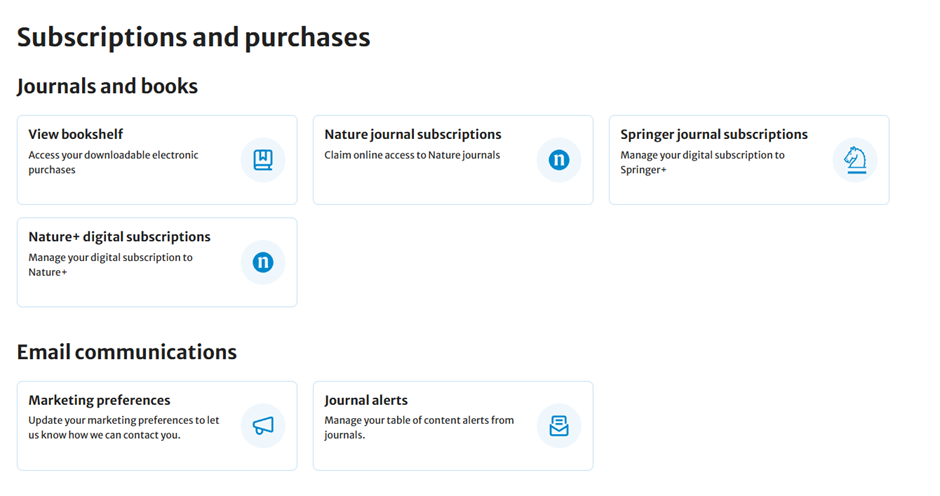
You will be taken to the saved and purchased digital copies of books, articles, and chapters where you will be able to select the title which is hyperlinked to the articles abstract, or you can download a PDF of the item at any time.

As part of purchasing Nature research articles through the website, you should receive an order confirmation email shortly after with a downloadable link to a PDF of the article you have purchased. If you do not receive this, please check the eBookshelf first before contacting the Springer Nature Customer Service team.